launching system file checker
Type SFC.exe in run
System File Checker (SFC)
Filename |
Sfc.exe |
File location |
\windows\system |
Inf file associated? |
No |
How to launch- MSInfo or... |
Start, Run, SFC |
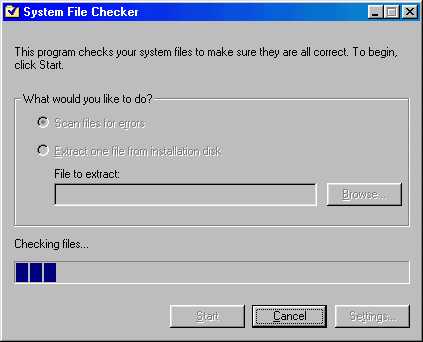
In Windows 3.x, any application could copy its own version of a driver to the Windows directory without the operating environment's awareness. For example, Comm.drv in the windows\system directory. When problems arose, you had no idea if another software package installed a new file nor which company wrote that file. If there was a problem, you have to locate Comm.drv on the customer's disks, expand it and test to see if it worked. Now, with Windows 98, just run the System File Checker (SFC) to identify changes. When a change is discovered, it can automatically go to the source location of your Windows 98 files and expand the file.
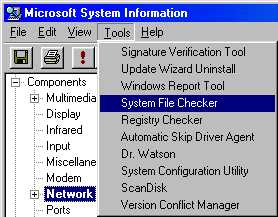
Tip - Launch System File Checker (SFC) from MSInfo Tools menu.
Using System File Checker
SFC helps you to:
- Scan specific system files for errors - Windows applications that are not developed to verify the current version of system files can copy older system files to the hard disk. When this happens, programs may not run correctly, and may generate file version error messages. This scan verifies that important system files have not been inadvertently modified or corrupted by other Windows applications.
- Restore original Windows 98 system files.
SFC Options
When System File Checker identifies a changed file, the user is given several choices to approach the situation. The following table describes these options:
Option |
Used to |
Update the verification information |
Update the file data in Default.sfc. Choose this option when you have updated a system file, without running System File Checker, and are certain that you want to update Default.sfc to use the updated information about the file, the next time System File Checker is run. |
Restore file |
Specify the source location of the file to restore and where to save the new copy of the file. You are also prompted to back up the existing file to the Windows\Help Desk\SFC folder. Always choose to backup the file for a customer in case there are problems using the new file. |
Ignore |
Skip the file. The next time System file Checker is run this file will cause the File Changed dialog box to appear again, because it was not added to the default.sfc nor was it resored. |
Update verification information for all changed files |
Update all of the verification information in the Default.sfc for all files that have been detected as changed by the System File Checker. Do not choose this option except when you know a large number of files have been updated. |
If a file is determined to be corrupt, you will get the dialog box with the options above.
SFC Support Files
SFCSYNC.TXT
These listings are the Windows 98 version of the files because Version Conflict Manager (VCM) insists on Windows 98 only.
SFC is placed in the Runonce section of the registry for setup. While Setup is running, the files listed in Sfcsync.txt are referenced. Each file that is installed automatically gets updated in the Default.sfc file.
Sfcsync.txt acts as an include list for the files to update in SFCs baseline file (Default.sfc) during setup. These files are added because setup may make a change to one of the characteristics that Setup relies on, such as file name or date.
SFCLOG.TXT
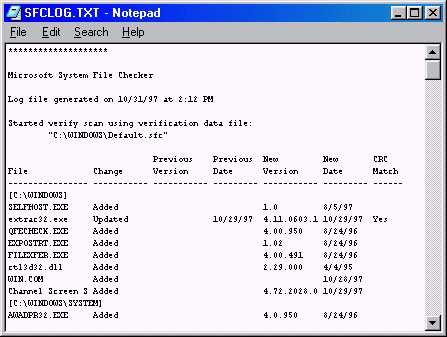
SFC keeps track of changes by appending the Sfclog.txt file. This simple text file is stored in the Windows folder. It identifies files that have their status added, changed or updated as well as version dates, new dates and whether the CRC matches. A sample of the file is shown below.
Customizing System File Checker
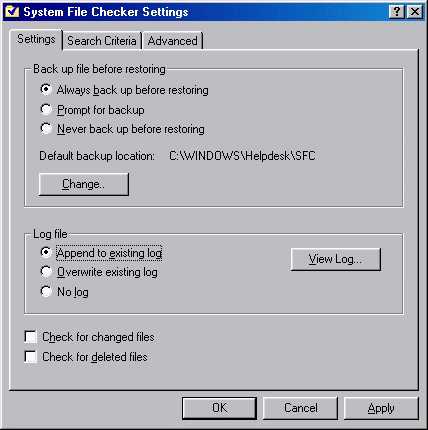
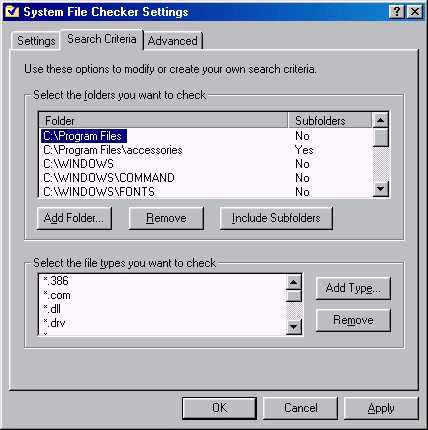
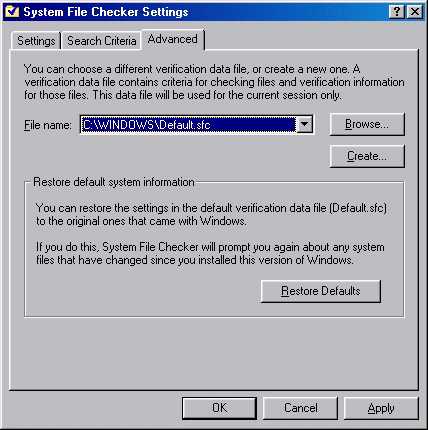
To customize System File Checker, click Settings in the System File Checker dialog box. The System File Checker Settings dialog box contains the following:
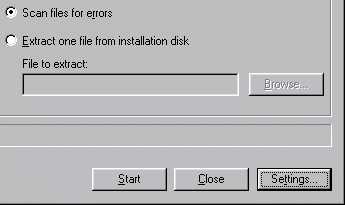
- Settings - used to configure how to back up files before restoring, and log file options
- Search Criteria - used to modify the files and folders to scan
- Advanced - used to create a new verification data file, choose a different verification data file to use, or restore the original Default.sfc.
Settings Tab
Search Criteria Tab
Advanced Tab
SFC By Design
Files Renamed from Setup
Files that are renamed during setup are not automatically extracted and renamed by SFC. For example, Winoa386.new in a Cab file cannot be extracted and renamed to Winoa386.mod. Use the Cabview feature to extract the file, then rename it.
Files Created during Setup
There are files that will never be found by SFC Extract due to their being created during setup. SFC extract looks for files in the cabinets to extract. If they do not exist in the CAB files it will fail to extract them. For example, files such as Control.ini, Exchange32.ini and Msbatch.inf are not found.
Changing the Default.sfc
If a person saves any changes for the search criteria in Default.sfc those changes will overwrite the original file. This might cause unexpected behaviors from customers requesting support using SFC.
Updated Drivers
If driver is updated, running SFC will by default automatically update the baseline after detecting the driver as 'Changed'. Under SFC Options, enable 'Check for changed files' to have these files prompt the user to restore the original - this is off by default. The View log will show if file was detected as changed and Default.sfc was updated. Go to Advanced Restore Defaults if the user wants to restore original baseline. This updated driver information can be viewed from MSInfo's driver history nodes.
Possibly Longer Call Time
In usability tests, several issues resolved with SFC passed 30 minutes call time because of an office suite installation. These installations tend to update many files in the Windows folder. If you only need to extract one file, but due to the sheer number of files with differing versions from Windows 98, it can take a long time to process.
Points to Remember:
The main points of the System File Checker (SFC) are:
- Launch System File Checker (SFC) from MSInfo Tools menu.
- Run the System File Checker (SFC) and look for changes in installed files. When a change is discovered, it can automatically go to the source location of your Windows 98 files and expand the appropriate file.
- System File Checker helps you to scan specific system files for errors and restore original Windows 98 system files.
- When you uninstall a program, SFC reports that the important files (Exe, Dll, Ocx and so forth) have been deleted. Select Update verification information.
- Files that are renamed during setup are not automatically extracted and renamed by SFC.
- There are files that will never be found by SFC Extract due to their being created during setup.
- If a person saves any changes for the search criteria in Default.sfc those changes will overwrite the original file.
TKB:1099